Pcf-Alm
Pcf-Alm is an code AI skill with a core value of Application lifecycle management (ALM) for PCF code components. It
helps developers solve real-world problems in the code domain, boosting
efficiency, automating repetitive tasks, and optimizing workflows.
Application lifecycle management (ALM) for PCF code components
Quick Facts
mkdir -p ./skills/pcf-alm && curl -sfL https://raw.githubusercontent.com/github/awesome-copilot/main/skills/pcf-alm/SKILL.md -o ./skills/pcf-alm/SKILL.mdRun in terminal / PowerShell. Requires curl (Unix) or PowerShell 5+ (Windows).
Skill Content
# Code Components Application Lifecycle Management (ALM)
ALM is a term used to describe the lifecycle management of software applications, which includes development, maintenance, and governance. More information: [Application lifecycle management (ALM) with Microsoft Power Platform](https://learn.microsoft.com/en-us/power-platform/alm/overview-alm).
This article describes considerations and strategies for working with specific aspects of lifecycle management from the perspective of code components in Microsoft Dataverse:
1. Development and debugging ALM considerations
2. Code component solution strategies
3. Versioning and deploying updates
4. Canvas apps ALM considerations
Development and Debugging ALM Considerations
When developing code components, you would follow the steps below:
1. Create code component project (`pcfproj`) from a template using `pac pcf init`. More information: [Create and build a code component](https://learn.microsoft.com/en-us/power-apps/developer/component-framework/create-custom-controls-using-pcf).
2. Implement code component logic. More information: [Component implementation](https://learn.microsoft.com/en-us/power-apps/developer/component-framework/custom-controls-overview#component-implementation).
3. Debug the code component using the local test harness. More information: [Debug code components](https://learn.microsoft.com/en-us/power-apps/developer/component-framework/debugging-custom-controls).
4. Create a solution project (`cdsproj`) and add the code component project as a reference. More information: [Package a code component](https://learn.microsoft.com/en-us/power-apps/developer/component-framework/import-custom-controls).
5. Build the code component in release mode for distribution and deployment.
Two Deployment Methods to Dataverse
When your code component is ready for testing inside a model-driven app, canvas app, or portal:
1. **`pac pcf push`**: This deploys a single code component at a time to a solution specified by the `--solution-unique-name` parameter, or a temporary PowerAppsTools solution when no solution is specified.
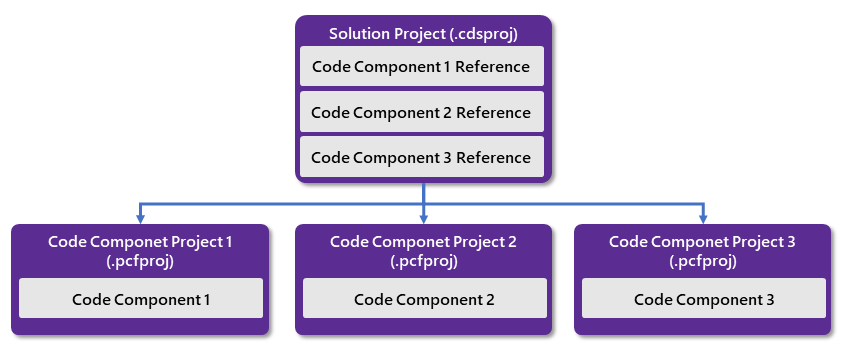
2. **Using `pac solution init` and `msbuild`**: Build a `cdsproj` solution project that has references to one or more code components. Each code component is added to the `cdsproj` using `pac solution add-reference`. A solution project can contain references to multiple code components, whereas code component projects may only contain a single code component.
The following diagram shows the one-to-many relationship between `cdsproj` and `pcfproj` projects:
More information: [Package a code component](https://learn.microsoft.com/en-us/power-apps/developer/component-framework/import-custom-controls#package-a-code-component).
Building pcfproj Code Component Projects
When building `pcfproj` projects, the generated JavaScript depends on the command used to build and the `PcfBuildMode` in the `pcfproj` file.
You don't normally deploy a code component into Microsoft Dataverse that has been built in development mode since it's often too large to import and may result in slower runtime performance. More information: [Debugging after deploying into Microsoft Dataverse](https://learn.microsoft.com/en-us/power-apps/developer/component-framework/debugging-custom-controls#debugging-after-deploying-into-microsoft-dataverse).
For `pac pcf push` to result in a release build, the `PcfBuildMode` is set inside the `pcfproj` by adding a new element under the `OutputPath` element:
<PropertyGroup>
   <Name>my-control</Name>
   <ProjectGuid>6aaf0d27-ec8b-471e-9ed4-7b3bbc35bbab</ProjectGuid>
   <OutputPath>$(MSBuildThisFileDirectory)out\controls</OutputPath>
   <PcfBuildMode>production</PcfBuildMode>
</PropertyGroup>
Build Commands
| Command | Default Behavior | With Pcf
🎯 Best For
- Claude users
- GitHub Copilot users
- Software engineers
- Development teams
- Tech leads
💡 Use Cases
- Code quality improvement
- Best practice enforcement
📖 How to Use This Skill
- 1
Install the Skill
Copy the install command from the Terminal tab and run it. The SKILL.md file downloads to your local skills directory.
- 2
Load into Your AI Assistant
Open Claude or GitHub Copilot and reference the skill. Paste the SKILL.md content or use the system prompt tab.
- 3
Apply Pcf-Alm to Your Work
Open your project in the AI assistant and ask it to apply the skill. Start with a small module to verify the output quality.
- 4
Review and Refine
Review AI suggestions before committing. Run tests, check for regressions, and iterate on the skill output.
❓ Frequently Asked Questions
Is Pcf-Alm compatible with Cursor and VS Code?
Yes — this skill works with any AI coding assistant including Cursor, VS Code with Copilot, and JetBrains IDEs.
Do I need specific dependencies for Pcf-Alm?
Check the install command and Works With section. Most code skills only require the AI assistant and your codebase.
How do I install Pcf-Alm?
Copy the install command from the Terminal tab and run it. The skill downloads to ./skills/pcf-alm/SKILL.md, ready to use.
Can I customize this skill for my team?
Absolutely. Edit the SKILL.md file to add team-specific instructions, examples, or workflows.
⚠️ Common Mistakes to Avoid
Skipping validation
Always test AI-generated code changes, even for simple refactors.
Missing dependency updates
Check if the skill requires updated dependencies or new packages.