Pcf-Power-Pages
Pcf-Power-Pages is an code AI skill with a core value of Using code components in Power Pages sites. It
helps developers solve real-world problems in the code domain, boosting
efficiency, automating repetitive tasks, and optimizing workflows.
Using code components in Power Pages sites
Quick Facts
mkdir -p ./skills/pcf-power-pages && curl -sfL https://raw.githubusercontent.com/github/awesome-copilot/main/skills/pcf-power-pages/SKILL.md -o ./skills/pcf-power-pages/SKILL.mdRun in terminal / PowerShell. Requires curl (Unix) or PowerShell 5+ (Windows).
Skill Content
# Use Code Components in Power Pages
Power Pages now support controls built for model-driven apps created using Power Apps component framework. To use code components in Power Pages site webpages:
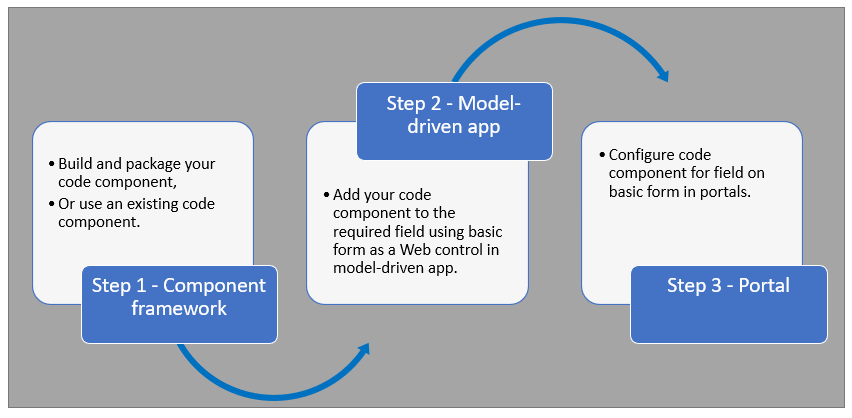
After completing these steps, users can interact with the code component using the webpage that has the respective [form](https://learn.microsoft.com/en-us/power-pages/getting-started/add-form) component.
Prerequisites
- You need system administrator privileges to enable the code component feature in the environment
- Your Power Pages site version needs to be [9.3.3.x](https://learn.microsoft.com/en-us/power-apps/maker/portals/versions/version-9.3.3.x) or higher
- Your starter site package needs to be [9.2.2103.x](https://learn.microsoft.com/en-us/power-apps/maker/portals/versions/package-version-9.2.2103) or higher
Create and Package Code Component
To learn about creating and packaging code components in Power Apps component framework, go to [Create your first component](https://learn.microsoft.com/en-us/power-apps/developer/component-framework/implementing-controls-using-typescript).
Supported Field Types and Formats
Power Pages supports restricted field types and formats for using code components. The following table lists all supported field data types and formats:
**Supported Types:**
- Currency
- DateAndTime.DateAndTime
- DateAndTime.DateOnly
- Decimal
- Enum
- Floating Point Number
- Multiple
- OptionSet
- SingleLine.Email
- SingleLine.Phone
- SingleLine.Text
- SingleLine.TextArea
- SingleLine.Ticker
- SingleLine.URL
- TwoOptions
- Whole
For more information, see [Attributes list and descriptions](https://learn.microsoft.com/en-us/power-apps/developer/component-framework/manifest-schema-reference/property#remarks).
Unsupported Code Components in Power Pages
The following code component APIs aren't supported:
- [Device.captureAudio](https://learn.microsoft.com/en-us/power-apps/developer/component-framework/reference/device/captureaudio)
- [Device.captureImage](https://learn.microsoft.com/en-us/power-apps/developer/component-framework/reference/device/captureimage)
- [Device.captureVideo](https://learn.microsoft.com/en-us/power-apps/developer/component-framework/reference/device/capturevideo)
- [Device.getBarcodeValue](https://learn.microsoft.com/en-us/power-apps/developer/component-framework/reference/device/getbarcodevalue)
- [Device.getCurrentPosition](https://learn.microsoft.com/en-us/power-apps/developer/component-framework/reference/device/getcurrentposition)
- [Device.pickFile](https://learn.microsoft.com/en-us/power-apps/developer/component-framework/reference/device/pickfile)
- [Utility](https://learn.microsoft.com/en-us/power-apps/developer/component-framework/reference/utility)
**Additional Restrictions:**
- The [uses-feature](https://learn.microsoft.com/en-us/power-apps/developer/component-framework/manifest-schema-reference/uses-feature) element must not be set to true
- [Value elements not supported](https://learn.microsoft.com/en-us/power-apps/developer/component-framework/manifest-schema-reference/property#value-elements-that-are-not-supported) by Power Apps component framework
- Power Apps Component Framework (PCF) controls bound to multiple fields in a form isn't supported
Add a Code Component to a Field in a Model-Driven App
To learn how to add a code component to a field in a model-driven app, go to [Add a code component to a field](https://learn.microsoft.com/en-us/power-apps/developer/component-framework/add-custom-controls-to-a-field-or-entity#add-a-code-component-to-a-column).
> **Important**: Code components for Power Pages are available for web browsers using the client option of **Web**.
Add Usi
🎯 Best For
- Claude users
- GitHub Copilot users
- Software engineers
- Development teams
- Tech leads
💡 Use Cases
- Code quality improvement
- Best practice enforcement
📖 How to Use This Skill
- 1
Install the Skill
Copy the install command from the Terminal tab and run it. The SKILL.md file downloads to your local skills directory.
- 2
Load into Your AI Assistant
Open Claude or GitHub Copilot and reference the skill. Paste the SKILL.md content or use the system prompt tab.
- 3
Apply Pcf-Power-Pages to Your Work
Open your project in the AI assistant and ask it to apply the skill. Start with a small module to verify the output quality.
- 4
Review and Refine
Review AI suggestions before committing. Run tests, check for regressions, and iterate on the skill output.
❓ Frequently Asked Questions
Is Pcf-Power-Pages compatible with Cursor and VS Code?
Yes — this skill works with any AI coding assistant including Cursor, VS Code with Copilot, and JetBrains IDEs.
Do I need specific dependencies for Pcf-Power-Pages?
Check the install command and Works With section. Most code skills only require the AI assistant and your codebase.
How do I install Pcf-Power-Pages?
Copy the install command from the Terminal tab and run it. The skill downloads to ./skills/pcf-power-pages/SKILL.md, ready to use.
Can I customize this skill for my team?
Absolutely. Edit the SKILL.md file to add team-specific instructions, examples, or workflows.
⚠️ Common Mistakes to Avoid
Skipping validation
Always test AI-generated code changes, even for simple refactors.
Missing dependency updates
Check if the skill requires updated dependencies or new packages.