Pcf-Canvas-Apps
Pcf-Canvas-Apps is an code AI skill with a core value of Code components for canvas apps implementation, security, and configuration. It
helps developers solve real-world problems in the code domain, boosting
efficiency, automating repetitive tasks, and optimizing workflows.
Code components for canvas apps implementation, security, and configuration
Quick Facts
mkdir -p ./skills/pcf-canvas-apps && curl -sfL https://raw.githubusercontent.com/github/awesome-copilot/main/skills/pcf-canvas-apps/SKILL.md -o ./skills/pcf-canvas-apps/SKILL.mdRun in terminal / PowerShell. Requires curl (Unix) or PowerShell 5+ (Windows).
Skill Content
# Code Components for Canvas Apps
Professional developers can use Power Apps component framework to create code components that can be used in their canvas apps. App makers can use Power Apps component framework to create, import, and add code components to canvas apps using [Microsoft Power Platform CLI](https://learn.microsoft.com/en-us/power-apps/developer/component-framework/get-powerapps-cli).
> **Note**: Certain APIs might not be available in canvas apps. We recommend that you check each API to determine where it's available.
Security Considerations
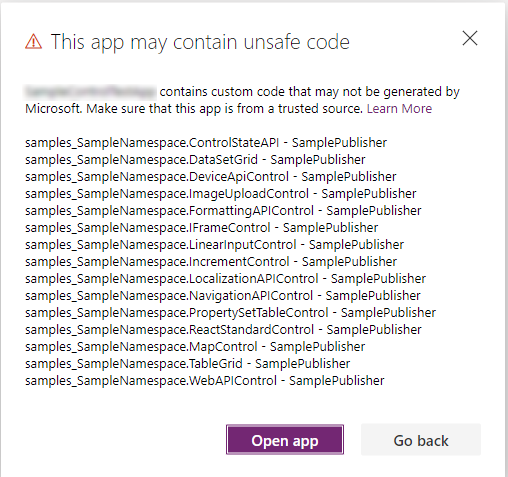
> **Warning**: Code components contain code that may not be generated by Microsoft and can potentially access security tokens and data when rendered in Power Apps Studio. When adding code components to a canvas app, make sure that the code component solutions are from a trusted source. This vulnerability does not exist when playing the canvas app.
Security Warning in Power Apps Studio
When you open a canvas app that contains code components in Power Apps Studio, a warning message about potentially unsafe code appears. Code components in the Power Apps Studio environment have access to security tokens; hence only components from trusted sources should be opened.
**Best Practices:**
- Administrators and system customizers should review and validate all code components before importing them into an environment
- Make components available to makers only after validation
- The `Default` publisher is shown when you import code components by using an unmanaged solution or when you have used `pac pcf push` to install your code component
Prerequisites
- A Power Apps license is required. More information: [Power Apps component framework licensing](https://learn.microsoft.com/en-us/power-apps/developer/component-framework/overview#licensing)
- System administrator privileges are required to enable the Power Apps component framework feature in the environment
Enable the Power Apps Component Framework Feature
To add code components to an app, you need to enable the Power Apps component framework feature in each environment where you want to use them. By default, the Power Apps component feature is enabled for model-driven apps.
Steps to Enable for Canvas Apps:
1. Sign in to [Power Apps](https://powerapps.microsoft.com/)
2. Select **Settings** , and then select **Admin Center**
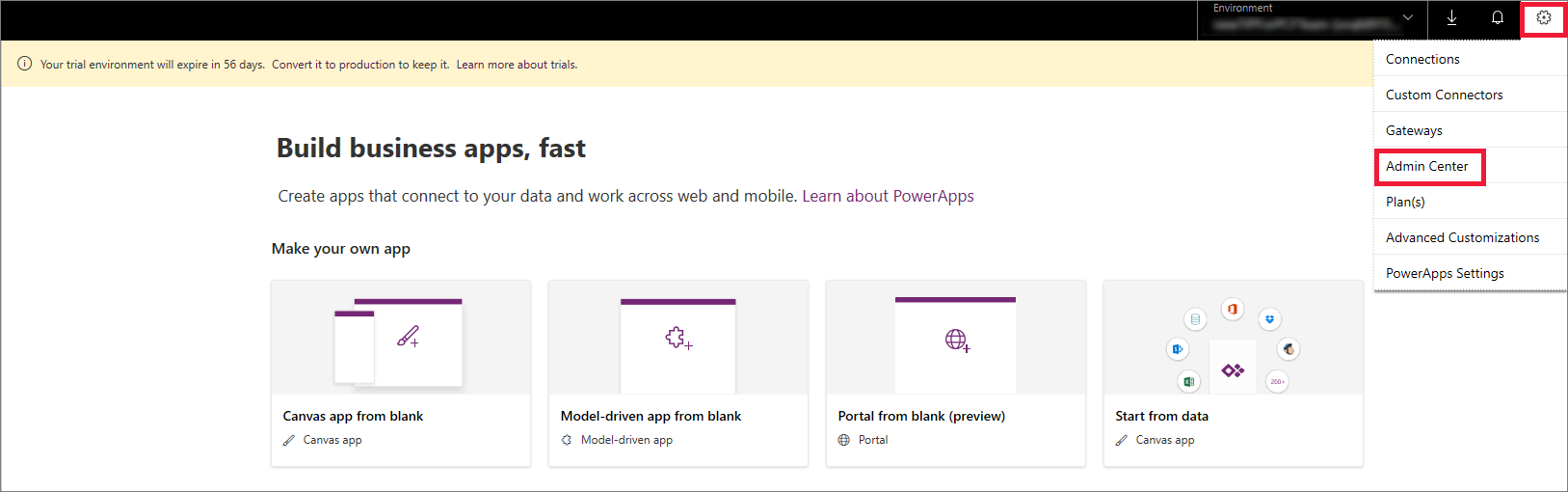
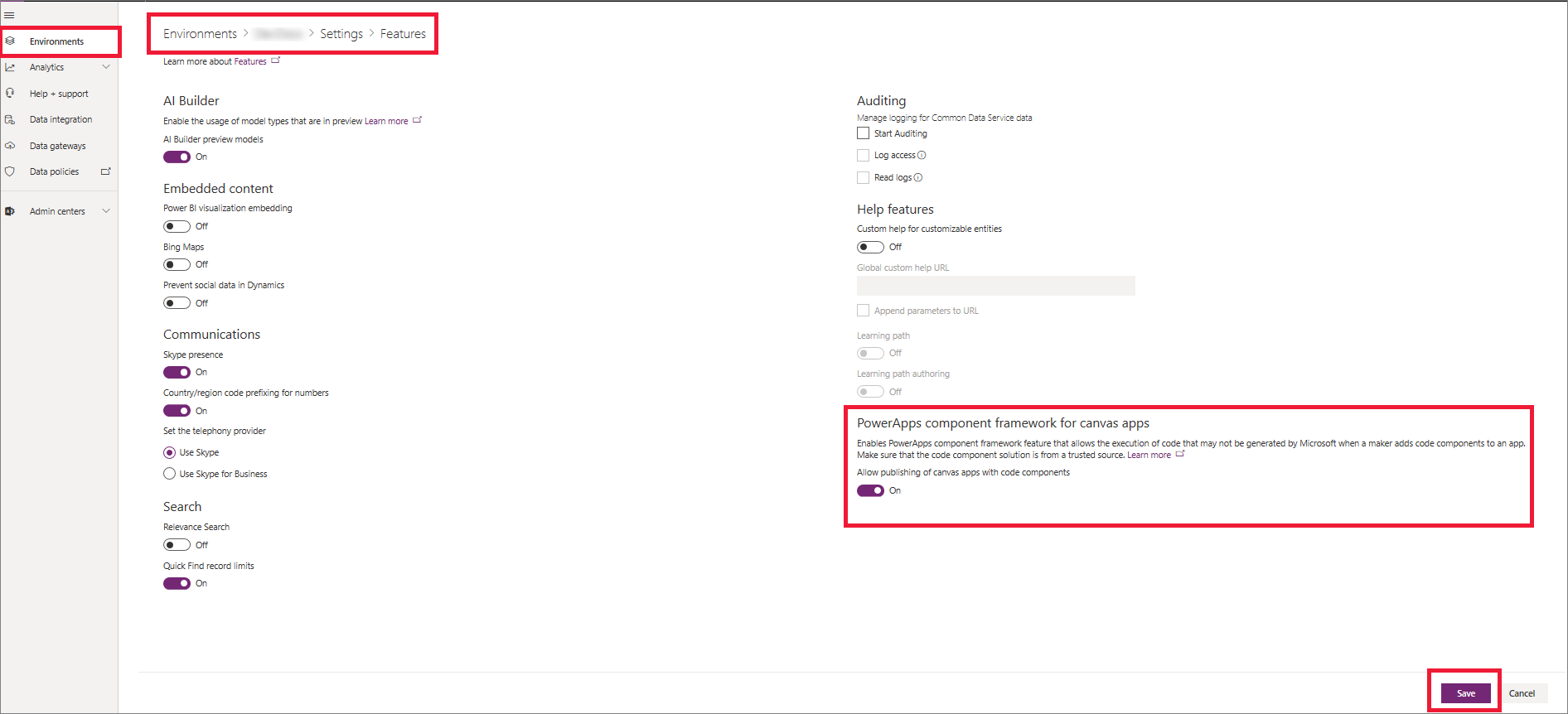
3. On the left pane, select **Environments**, select the environment where you want to enable this feature, and then select **Settings**
4. Expand **Product**, and select **Features**
5. From the list of available features, turn on **Power Apps component framework for canvas apps**, and then select **Save**
Implementing Code Components
After you enable the Power Apps component framework feature in your environment, you can start implementing the logic for code components. For a step-by-step tutorial, go to [Create your first code component](https://learn.microsoft.com/en-us/power-apps/developer/component-framework/implementing-controls-using-typescript).
**Recommendation**: Check the [limitations](https://learn.microsoft.com/en-us/power-apps/developer/component-framework/limitations) of code components in canvas apps before starting implementation.
Add Components to a Canvas App
1. Go to Power Apps Studio
2. Create a new canvas app, or edit an existing app to which you want to add the code component
> **Important**: Make sure the solution .z
🎯 Best For
- Security auditors
- DevSecOps teams
- Compliance officers
- Claude users
- GitHub Copilot users
💡 Use Cases
- Auditing dependencies for known CVEs
- Scanning API endpoints for auth gaps
- Code quality improvement
- Best practice enforcement
📖 How to Use This Skill
- 1
Install the Skill
Copy the install command from the Terminal tab and run it. The SKILL.md file downloads to your local skills directory.
- 2
Load into Your AI Assistant
Open Claude or GitHub Copilot and reference the skill. Paste the SKILL.md content or use the system prompt tab.
- 3
Apply Pcf-Canvas-Apps to Your Work
Open your project in the AI assistant and ask it to apply the skill. Start with a small module to verify the output quality.
- 4
Review and Refine
Review AI suggestions before committing. Run tests, check for regressions, and iterate on the skill output.
❓ Frequently Asked Questions
Can this replace a dedicated SAST tool?
AI-based security review is complementary to SAST tools. Use it as a first-pass filter, not a replacement.
Is Pcf-Canvas-Apps compatible with Cursor and VS Code?
Yes — this skill works with any AI coding assistant including Cursor, VS Code with Copilot, and JetBrains IDEs.
Do I need specific dependencies for Pcf-Canvas-Apps?
Check the install command and Works With section. Most code skills only require the AI assistant and your codebase.
How do I install Pcf-Canvas-Apps?
Copy the install command from the Terminal tab and run it. The skill downloads to ./skills/pcf-canvas-apps/SKILL.md, ready to use.
Can I customize this skill for my team?
Absolutely. Edit the SKILL.md file to add team-specific instructions, examples, or workflows.
⚠️ Common Mistakes to Avoid
Only scanning surface-level issues
Deep security review requires understanding your app architecture, not just regex patterns.
Skipping validation
Always test AI-generated code changes, even for simple refactors.
Missing dependency updates
Check if the skill requires updated dependencies or new packages.